Git Integration
Connect GitHub repositories to your Kanman boards and projects for seamless development workflow tracking.
Git integration allows you to connect your GitHub repositories to Kanman, bringing code and project management together in one place. For development teams, this means you can see your codebase alongside your tasks without switching between tools. Link repositories to boards or individual projects to keep all related context connected.
This integration creates a true bridge between your code and your task management. Kanman automatically scans commit messages for task and project references, allowing you to track which commits relate to which work. You can also configure status change keywords to automatically move tasks through your workflow when specific keywords appear in commit messages.
Overview
With Git integration, you can:
- Connect your GitHub account
- Link repositories to boards and projects
- View linked repos in project details
- Scan commits for task/project references (e.g., “T-123”, “P-42”)
- Configure status change keywords (e.g., “fixes T-123” moves task to Done)
- Track which commits reference your work items
Supported Providers
| Provider | Status |
|---|---|
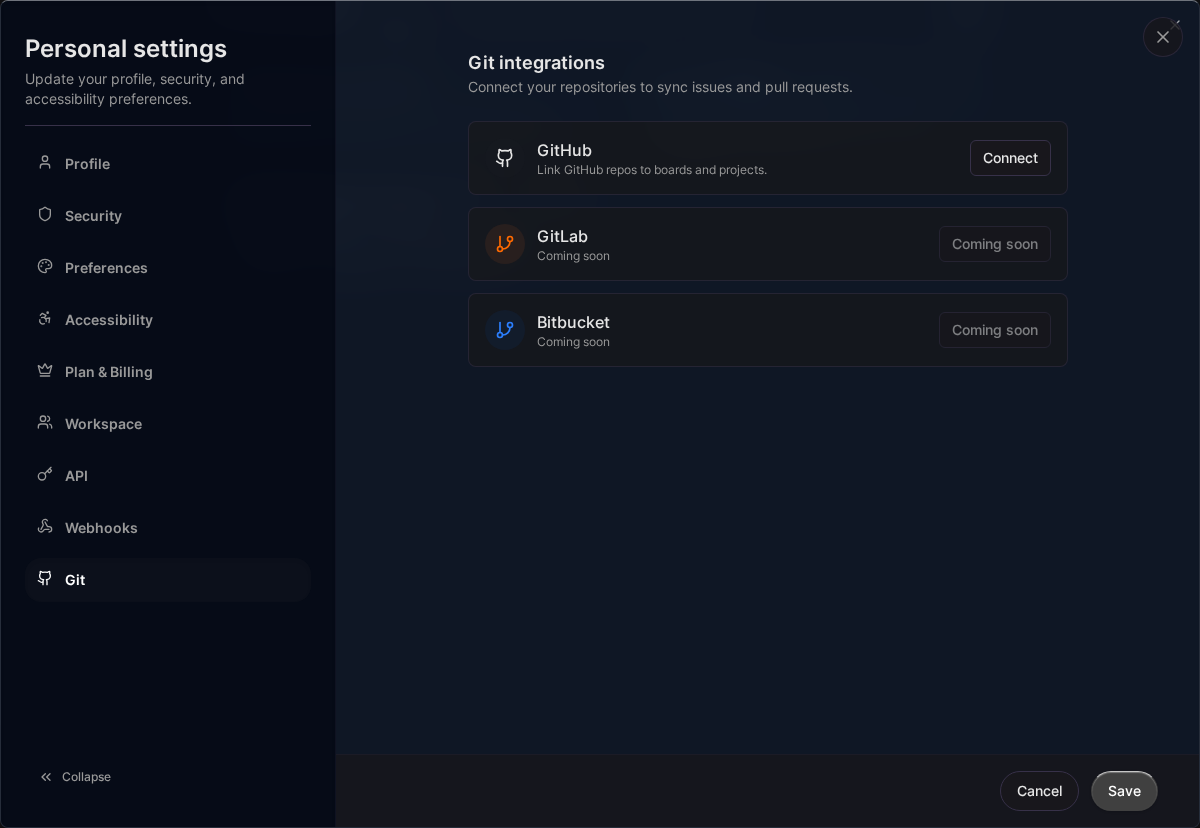
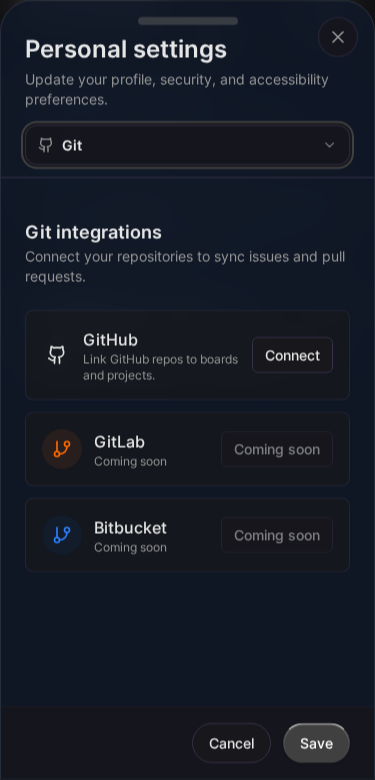
| GitHub | ✅ Available |
| GitLab | 🔜 Planned |
| Bitbucket | 🔜 Planned |
Integration Limits
| Plan | Git Integrations | Linked Repos |
|---|---|---|
| Pro | 2 | 4 |
| Teams | 10 | 20 |
Connecting GitHub
Step 1: Start Connection
- Go to Settings > Integrations > Git
- Click Connect GitHub
- You’ll be redirected to GitHub
Step 2: Authorize
- Review the permissions requested
- Click Authorize Kanman
- You’ll be redirected back to Kanman
Step 3: Confirm
- Verify the connection in Settings
- Your GitHub username will appear
- Connection is ready to use
Permissions Requested
Kanman requests these GitHub permissions:
| Scope | Purpose |
|---|---|
repo |
Access repository information |
read:user |
Read your GitHub profile |
We never:
- Modify your code
- Push commits
- Delete repositories
- Access private data beyond repos
Linking a Repository
To a Board
- Open a board
- Go to Board Settings > Git
- Click Link Repository
- Select from your repositories
- Click Link
To a Project
- Open a project
- Click Project Settings
- Go to Git Integration
- Click Link Repository
- Select from your repositories
- Click Link
Repository Selection
When linking, you can choose from:
- Your personal repositories
- Organization repositories (where you have access)
- Public repositories
Filtering
- Search by name
- Filter by visibility (public/private)
- Filter by owner (personal/org)
Linked Repository Info
Each linked repo shows:
| Field | Description |
|---|---|
| Name | Repository name |
| Full Name | owner/repo format |
| URL | GitHub repository URL |
| Default Branch | Usually main or master |
| Private | Whether repo is private |
Sync Options
Configure what to sync for each linked repository:
| Option | Description |
|---|---|
| Sync Issues | Create tasks from GitHub issues |
| Sync PRs | Create tasks from pull requests |
Note: Issue and PR sync is planned for a future release.
Short IDs
Every project and task in Kanman has a unique short ID that makes referencing easy:
| Type | Format | Example |
|---|---|---|
| Project | P-{number} | P-1, P-42, P-100 |
| Task | T-{number} | T-1, T-123, T-500 |
Short IDs are:
- Unique within your workspace
- Auto-generated when you create items
- Displayed as badges in the UI
- Used for commit message references
Commit Scanning
Kanman can automatically scan your commit messages for references to projects and tasks. When a match is found, it creates a link between the commit and the referenced item.
Enabling Commit Scanning
- Go to Settings > Integrations > Git
- Find your linked repository
- Click Commit scanning to expand settings
- Toggle Enable commit scanning on
Reference Scanning
When enabled, Kanman scans commit messages for patterns like:
T-123- References task #123P-42- References project #42Implemented feature for T-123 and T-456- Multiple references
References are case-insensitive, so t-123 and T-123 both work.
Status Change Keywords
Configure keywords that automatically update task status when they appear before a reference:
| Example Message | Action |
|---|---|
fixes T-123 |
Move T-123 to configured lane |
closes T-456 |
Move T-456 to configured lane |
starts T-789 |
Move T-789 to configured lane |
Configuring Keywords
- Enable Scan for status change keywords
- Add keywords with their target lanes:
- Keyword: The word to detect (e.g., “fixes”, “closes”)
- Target Lane: The workflow lane to move the task to
- Toggle individual keywords on/off as needed
Common keyword configurations:
| Keyword | Typical Target |
|---|---|
| fixes, closes, resolves | Done / Finished |
| starts, begins, wip | In Progress |
| blocks, pauses | Waiting / Blocked |
Keyword Syntax
Keywords support flexible syntax:
fixes T-123- Space separatorfixes: T-123- Colon separatorfixes #T-123- Hash separator
All formats are recognized and processed the same way.
Managing Integrations
View Connected Accounts
- Go to Settings > Integrations > Git
- See all connected Git providers
- View connection date and username
Disconnect
- Go to Settings > Integrations > Git
- Find the provider to disconnect
- Click Disconnect
- Confirm disconnection
Disconnecting:
- Removes all linked repositories
- Revokes Kanman’s access
- Doesn’t affect your GitHub account
Reconnect
If you revoke access in GitHub:
- Go to Settings > Integrations > Git
- Click Reconnect next to GitHub
- Re-authorize in GitHub
- Previous links may need to be re-established
Unlinking Repositories
From a Board
- Go to Board Settings > Git
- Find the linked repo
- Click Unlink
- Confirm
From a Project
- Open Project Settings > Git
- Find the linked repo
- Click Unlink
- Confirm
Unlinking doesn’t affect the GitHub repository.
Use Cases
Development Project Tracking
Link your codebase to track:
- Feature development in projects
- Bug fixes in tasks
- Code review in subtasks
Multiple Repositories
For projects spanning multiple repos:
- Link main app repo to the board
- Link specific repos to relevant projects
- Keep context without switching tools
Client Work
For client projects:
- Board per client
- Link client’s repos to their board
- Keep client work organized
Troubleshooting
“Could not list repositories”
Cause: GitHub token expired or revoked
Solution:
- Go to Settings > Integrations
- Disconnect GitHub
- Reconnect and re-authorize
“Repository not found”
Cause: Repository deleted, made private, or access revoked
Solution:
- Verify repo exists in GitHub
- Check you have access
- Try unlinking and relinking
“Permission denied”
Cause: Organization hasn’t approved Kanman
Solution:
- Contact your GitHub org admin
- Request Kanman be approved
- Alternatively, use a fork in your personal account
Security
Token Storage
- GitHub tokens are encrypted at rest
- Never exposed to client-side code
- Only used for server-side API calls
Minimal Permissions
We request only the permissions needed:
- Read repository information
- No write access
- No access to issues/PRs (until sync feature)
Revocation
Revoke access anytime:
- In Kanman: Disconnect integration
- In GitHub: Settings > Applications > Authorized OAuth Apps
Future Features
Planned improvements:
- Issue Sync: Create tasks from GitHub issues
- PR Sync: Track pull requests as tasks
- Two-way Sync: Update GitHub from Kanman
- GitLab Support: Connect GitLab accounts
- Bitbucket Support: Connect Bitbucket accounts
- Commit Activity Feed: View commit history in task details
Related Topics
Last updated: January 1, 0001
Try Kanman