Search
Find boards, projects, tasks, and notes quickly with Kanman's search feature.
Search is your fastest way to find anything in Kanman. Instead of clicking through boards and scrolling through projects, press Ctrl+K and start typing—results appear instantly as you type, getting you to what you need in seconds.
The search palette is designed for keyboard-first interaction, inspired by command palettes in tools like VS Code, Slack, and Notion. Once you get comfortable with it, you’ll find it becomes your primary way of navigating the app.
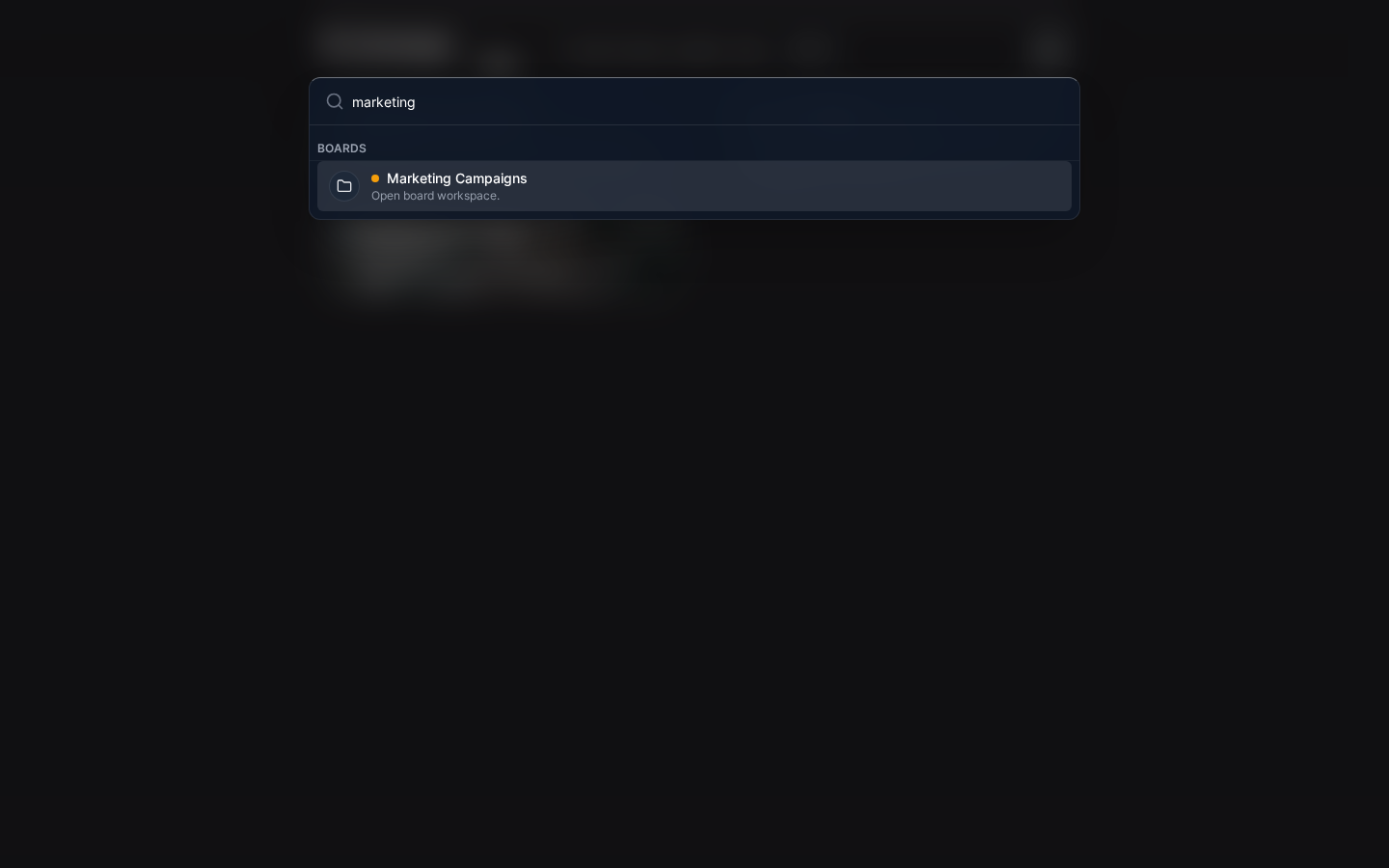
Accessing Search
You can open search from anywhere in the app:
- Keyboard shortcut: Press
Ctrl+K(Windows/Linux) orCmd+K(Mac) - Click: Click the search icon in the header bar
- From any view: Search works the same whether you’re on the homepage, viewing a board, or in settings
What You Can Search
Search finds items across your entire workspace:
- Boards - Find boards by their name
- Projects - Find projects by name, across all your boards
- Tasks - Find tasks by name or description content
- Notes - Find notes by title or content
All searches happen across your entire workspace simultaneously, so you don’t need to know where something is to find it.
Using Search
The search experience is designed to be fast and intuitive:
- Open search with
Ctrl+K(orCmd+Kon Mac) - Start typing your search query—no need to press Enter
- Watch results appear instantly as you type
- Navigate using arrow keys (
↑/↓) to highlight results - Press Enter to open the selected item

The search palette closes automatically when you select an item or press Escape.
Search Results
Results are organized into categories to help you find what you’re looking for quickly:
Result categories:
- Boards - Matching board names appear first
- Projects - Projects that match your query, showing their parent board
- Tasks - Tasks matching by name or description, with project context
- Notes - Notes matching by title or content
Each result shows contextual information—like which board a project belongs to—so you can identify the right item even when names are similar.
Keyboard Navigation
Search is optimized for keyboard-only use:
| Key | Action | Description |
|---|---|---|
↑ / ↓ |
Navigate results | Move selection up and down through results |
Enter |
Open selected | Open the highlighted item |
Escape |
Close search | Dismiss the search palette |
Tab |
Cycle groups | Jump between result categories |
You can open search, find what you need, and navigate there entirely without touching your mouse.
Search Tips
Partial Matching
Search matches partial words, so you don’t need to type complete names:
- Type “mark” to find “Marketing Campaign”
- Type “auth” to find “User Authentication”
- Type “api” to find “API Integration Project”
Case Insensitive
Searches ignore capitalization, so you can type however is natural:
- “MARKETING” = “marketing” = “Marketing”
- “API” = “Api” = “api”
Multiple Words
When you type multiple words separated by spaces, search finds items containing all of those words (AND matching):
- “marketing campaign” finds items containing both “marketing” AND “campaign”
- “user auth” finds items containing both “user” AND “auth”
The words don’t need to be adjacent—they just need to appear somewhere in the item.
Quick Actions
Beyond finding items, search also supports quick actions for creating and navigating:
| Prefix | Action | Example |
|---|---|---|
> |
Run commands | > new board creates a new board |
/ |
Navigate to sections | /settings opens settings |
This command-palette style interaction lets you perform actions quickly without navigating through menus.
Search Scope
Search covers everything in your workspace that you have access to:
- All your boards - Every board in your workspace
- All projects - Projects within those boards
- All tasks - Tasks within those projects
- All notes - Notes attached to those boards
If you have access to it, search can find it.
Performance
Search is optimized for speed and relevance:
- Instant results - Results appear as you type with no delay
- Smart ranking - Recent and frequently accessed items appear higher
- Efficient indexing - Even large workspaces search quickly
You should see results within milliseconds of typing, making search the fastest way to navigate.
Current Limitations
There are a few things search doesn’t currently support:
- Subtasks are not directly searchable (search their parent task instead)
- Deleted items in trash are excluded from search results
- Advanced operators like AND, OR, NOT aren’t available
- Date filtering isn’t supported (e.g., “tasks from last week”)
We’re continually improving search, so these limitations may be addressed in future updates.
Keyboard Shortcut Summary
| Shortcut | Platform | Action |
|---|---|---|
Ctrl+K |
Windows/Linux | Open search palette |
Cmd+K |
Mac | Open search palette |
This shortcut is consistent with many popular applications, making it easy to remember.
Related Topics
- Keyboard Shortcuts - Complete list of keyboard shortcuts
- Interface - Overview of the Kanman interface
Last updated: January 1, 0001
Try Kanman