Kanban View
Visualize your workflow with Kanban boards. Drag tasks through customizable lanes and status columns.
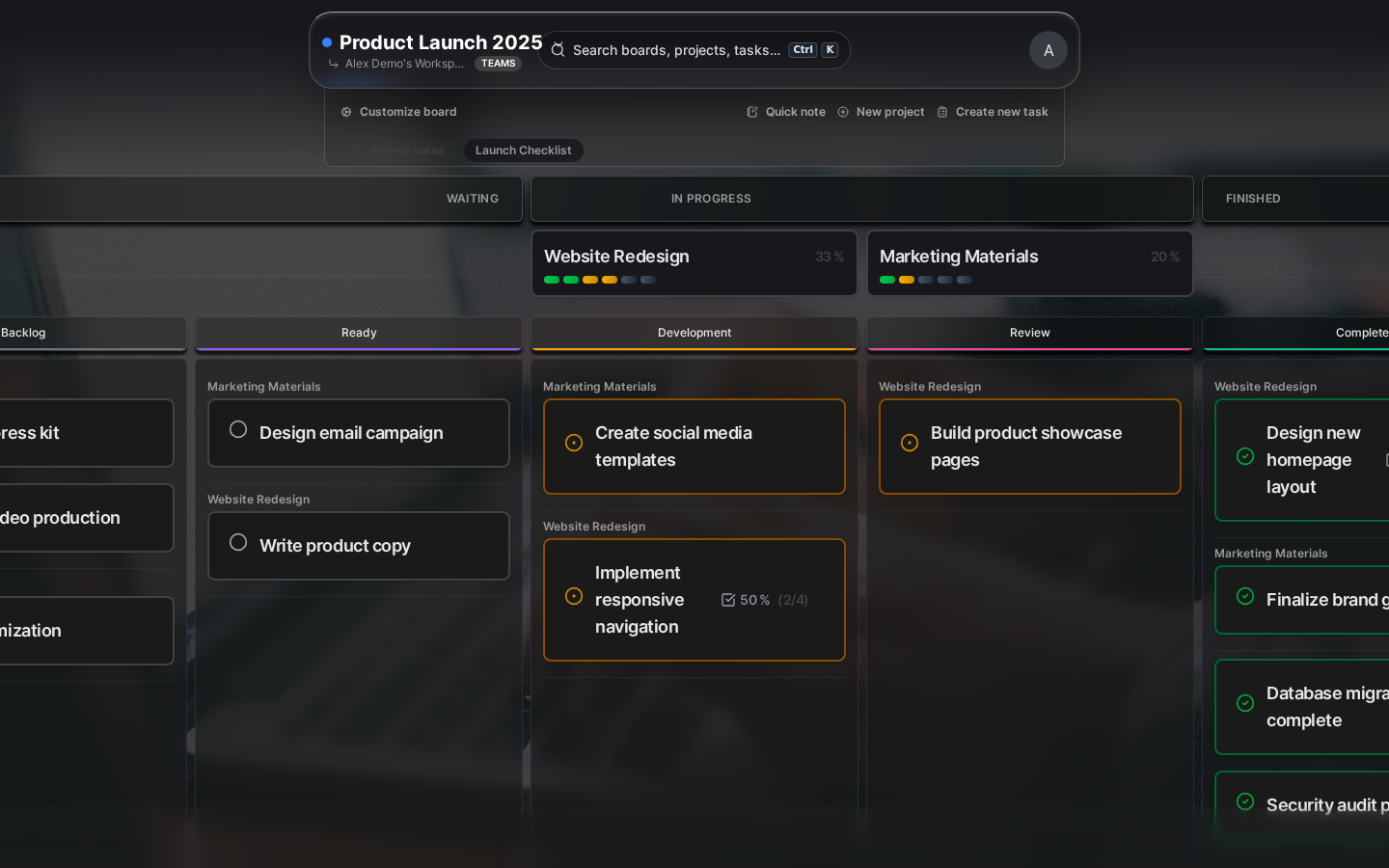
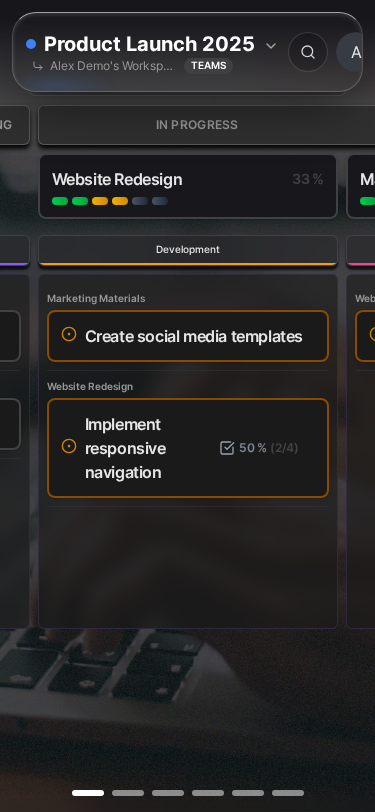
Kanban view transforms your board into a visual workflow where you can see the status of every task at a glance. Instead of scrolling through lists, you get a bird’s-eye view of your entire workload organized into columns that represent each stage of your process. This makes it easy to spot bottlenecks, balance your workload, and understand exactly where every piece of work stands.
Whether you’re managing a software sprint, coordinating a marketing campaign, or organizing your personal projects, the Kanban view gives you the clarity to make better decisions about what to work on next and identify where things are getting stuck.
What is Kanban?
Kanban is a visual workflow method that originated in Japanese manufacturing and has been widely adopted for knowledge work. The word “Kanban” means “visual signal” or “card” in Japanese, and that’s exactly what this approach provides—a clear visual signal about the state of your work.
In Kanman, tasks flow through columns representing their status. As you complete work on a task, you move it to the next column, creating a visual representation of progress that anyone can understand at a glance. This simple concept is surprisingly powerful for staying organized and productive.
Enabling Kanban View
Switching to Kanban view takes just a single click, and you can toggle back and forth between views as often as you like—your tasks stay exactly where they are.
Quick toggle (temporary for this session):
- Open a board
- Click the Layout toggle in the board header
- Select Kanban
Set as default (persists across sessions):
- Go to Board Settings (gear icon in the header)
- Under Layout Preference, choose Kanban
- Changes save automatically when you close the settings
The Three Columns
Kanban view organizes your tasks into three main status columns, each representing a distinct stage of your workflow. Tasks automatically appear in the column that matches their current status, so you always have an accurate picture of where things stand:
| Column | Task Status | Purpose |
|---|---|---|
| Waiting | Open (0) | Work not yet started |
| In Progress | In Progress (1) | Work being done now |
| Finished | Done (2) | Completed work |
Tasks automatically appear in the column matching their status.
Moving Tasks
Moving tasks through your workflow is intuitive and immediate—the status updates the moment you drop a card in a new column.
Drag and Drop
The primary way to move tasks is simple drag and drop:
- Click and hold a task card anywhere on the card surface
- Drag to another column—you’ll see a visual indicator showing where the task will land
- Release to drop the card in its new position
The task’s status updates automatically to match the column you dropped it in. There’s no save button needed—the change is immediate and synced across all your devices.

Gravity animation: While dragging, you’ll notice a subtle swinging motion that responds to your movement direction. This natural-feeling animation helps you feel connected to the task you’re moving and makes the interface more enjoyable to use.
Auto-scroll: When you drag a task near the edge of the screen, the board automatically scrolls in that direction. This makes it easy to move tasks across long boards without needing to scroll manually first.

Project-Scoped Ordering
Tasks are visually grouped by their parent project within each column. When you move a task to a new column:
- The task joins its project’s group in that column
- The project’s priority order is maintained (higher-priority projects appear first)
- You can reorder tasks within their project group, but a task always stays with its project siblings
This design ensures your board stays organized even as tasks move between stages. Visual indicators highlight valid drop zones as you drag, showing exactly where in the project group your task will land.
Reordering Within a Column
You can drag tasks up or down within a column to prioritize your work. The order you set is preserved, so you can arrange tasks by importance, deadline, or whatever system makes sense for you. Tasks at the top of a column naturally draw your attention first.

Note: Reordering only affects tasks within the same project group. To change a task’s project, edit the task and select a different project—you can’t drag tasks between project groups.
Workflow Lanes
While three columns work well for simple workflows, real work often has more nuance. Workflow lanes let you subdivide each status column to match your actual process. Think of lanes as mini-stages within each major status—they help you track exactly where work is without adding complexity.
For example, “In Progress” might actually mean several different things: actively being worked on, waiting for review, or being tested. Lanes let you visualize these distinctions without changing your fundamental three-column workflow.
Default Lanes
Each status column starts with one default lane matching its name (Waiting, In Progress, Finished). This keeps things simple until you need more granularity.
Adding Lanes
Creating custom lanes is straightforward:
- Click the + button at the top of a column
- Enter a descriptive lane name (e.g., “Code Review”, “Testing”, “Backlog”)
- Choose a color to help visually distinguish the lane (optional but recommended)
- Click Add
Your new lane appears immediately, and you can start dragging tasks into it.
Example Setup
Here’s how different teams commonly organize their lanes:
Software development workflow:
- Waiting column: Backlog, Ready for Development
- In Progress column: Development, Code Review, Testing
- Finished column: Done, Deployed
Content creation workflow:
- Waiting column: Ideas, Research Needed
- In Progress column: Writing, Editing, Review
- Finished column: Published, Archived
Personal productivity:
- Waiting column: Someday, This Week
- In Progress column: Today, Blocked
- Finished column: Done
Lane Properties
Each lane has several properties you can configure:
| Property | Description | Tips |
|---|---|---|
| Name | Display label shown in the lane header | Keep it short (1-2 words) for better readability |
| Color | Visual indicator (hex color) | Use consistent colors across boards for similar stages |
| Position | Order within column (top to bottom) | Arrange to match your natural workflow progression |
| Stage | Parent status: waiting, in_progress, or finished | Automatically set based on which column contains the lane |
Managing Lanes
Edit a lane: Click the lane header, then click the edit icon (pencil). You can change the name and color at any time.
Reorder lanes: Drag the lane header up or down within its column to rearrange. Tasks stay in their lanes when you reorder.
Delete a lane: Click the lane menu (three dots), then select Delete. You’ll be asked to confirm before the lane is removed.
Important: When you delete a lane, all tasks in that lane automatically move to the default lane for that status column. No tasks are lost—they’re just reorganized.
Filtering
When you have multiple projects on a board, you might want to focus on just one at a time. Filtering lets you temporarily hide tasks from other projects so you can concentrate on what matters right now.
Filter by Project
- Click the Filter dropdown in the board header
- Select one or more projects you want to see
- The board updates immediately to show only tasks from those projects
This is especially useful during sprint planning, client meetings, or when you need to focus on a specific initiative without distractions from unrelated work.
Clear Filters
To see all tasks again, click Clear in the filter dropdown or deselect all projects. Your filter preferences are temporary and reset when you leave the board.
Kanban vs Simple View
Both views show the same data—choosing between them is about which style helps you work best. Here’s how they compare:
| Aspect | Kanban View | Simple View |
|---|---|---|
| Task display | Cards arranged in status columns | Tasks listed within project cards |
| Status changes | Drag cards between columns | Click the status icon on each task |
| Visual workflow | See all statuses side by side | Focus on one project at a time |
| Custom lanes | Subdivide status columns | Not available |
| Screen space | Uses more horizontal space | More compact, especially on mobile |
| Best for | Visual planning, team standups, workflow analysis | Quick task management, limited screen space |
You can switch between views anytime without losing data. Your tasks, projects, and lane configurations all persist—only the visual presentation changes.
Keyboard Shortcuts
For power users who prefer to keep their hands on the keyboard, Kanban view supports these shortcuts when a task is selected:
| Shortcut | Action | What Happens |
|---|---|---|
→ |
Move task to next status | Task moves from Waiting → In Progress → Finished |
← |
Move task to previous status | Task moves backward through statuses |
↑ / ↓ |
Navigate between tasks | Select different tasks within the column |
Enter |
Open task details | Opens the task detail panel for editing |
These shortcuts make it fast to triage tasks during planning sessions or quickly update statuses during standup meetings.
Best Practices
Getting the most out of Kanban view isn’t just about understanding the features—it’s about developing habits that keep your board useful and accurate.
Limit Work in Progress
One of the core principles of Kanban methodology is limiting work in progress (WIP). A crowded “In Progress” column is a red flag that you’re spreading yourself too thin.
- Aim for 3-5 active tasks in your “In Progress” column at any time
- Finish tasks before starting new ones—this reduces context switching and improves focus
- Use “Waiting” honestly—if you haven’t started working on something, it belongs there, not in “In Progress”
When your “In Progress” column is lean, you can see at a glance what you’re actually working on right now, not what you hope to eventually get to.
Use Lanes Strategically
Lanes should reflect your actual workflow, not an idealized process. Start with the default lanes and only add more when you notice a real need.
Common lane patterns:
- Development teams: Backlog, In Development, Code Review, QA, Done
- Content teams: Ideas, Writing, Editing, Published
- Personal projects: Today, This Week, Someday, Done
Avoid over-engineering: If you find yourself with more than 3-4 lanes per column, you might be adding complexity that doesn’t help. Keep it simple.
Review Regularly
A Kanban board is only useful if it reflects reality. Build review habits into your routine:
- Daily: Move tasks as you work on them—this should be second nature
- Weekly: Clear out the “Done” column by archiving or celebrating completed work
- Monthly: Review your lane setup and adjust if your workflow has evolved
Color Coding
Lane colors aren’t just decorative—use them to add another dimension of information:
- Priority levels: Red for urgent, yellow for important, green for standard
- Team ownership: Blue for design, green for development, purple for content
- Work categories: Different colors for bugs, features, maintenance, etc.
Pick a color scheme and stick with it across all your boards for consistency.
Accessibility
Kanban view is designed to be usable by everyone, including users who rely on assistive technologies or have visual preferences that differ from the defaults.
Keyboard navigation: Every action available via drag-and-drop is also available via keyboard. Navigate between cards with arrow keys and move tasks between columns without touching a mouse.
Screen reader support: Drag operations include announcements that describe what’s happening, so screen reader users can understand the current state of their board.
Reduced motion: If you’ve enabled reduced motion in your accessibility settings (or your operating system), drag-and-drop animations are replaced with instant transitions.
High contrast: When high contrast mode is enabled, column and lane boundaries become more visible, and status indicators are easier to distinguish.
Configure these settings in Settings > Preferences > Accessibility, or Kanman will automatically respect your operating system’s accessibility preferences.
Related Topics
- Boards - Learn about board layout preferences and customization
- Tasks - Understand the task status workflow in detail
- Accessibility - Configure visual and motion accessibility options
Last updated: January 1, 0001
Try Kanman