Accessibility
Configure Kanman's accessibility features including reduced motion, high contrast, and text size options.
Kanman is designed to be accessible to users with various needs. This guide covers available accessibility features and how to configure them.
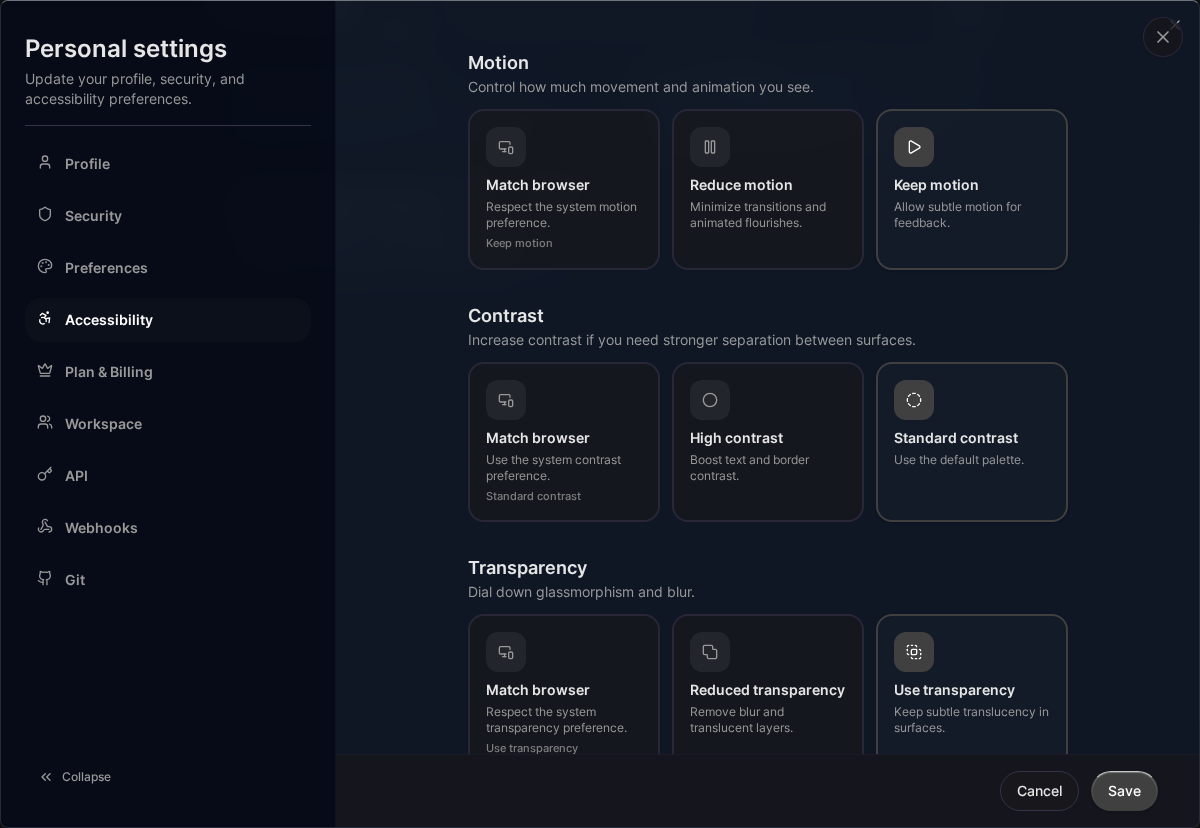
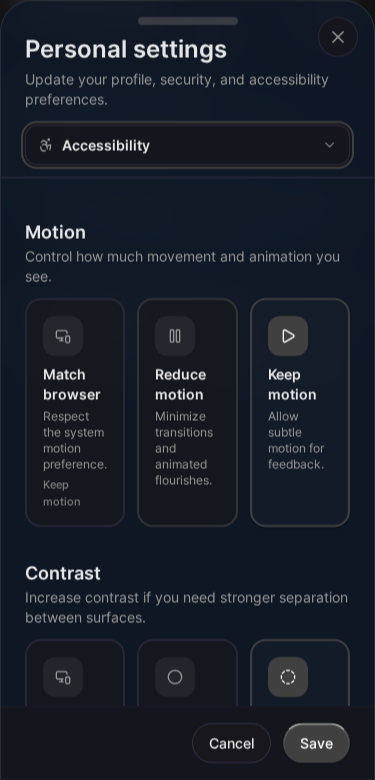
Accessibility Settings
Find accessibility options at Settings > Preferences > Accessibility.
Theme Options
System Theme
Follow your operating system’s theme:
- Automatically switches between light and dark
- Updates when system preference changes
Light Theme
Bright interface with dark text on light backgrounds.
Dark Theme
Dark interface (default) with light text on dark backgrounds.
Reduced Motion
Disable animations for users who:
- Experience motion sickness
- Find animations distracting
- Prefer instant transitions
- Have vestibular disorders
What It Affects
When enabled:
- Task status changes are instant (no animation)
- Drag and drop has no transition effects
- Modal open/close is instant
- Progress bars don’t animate
- Scroll is instant (no smooth scroll)
Enabling
- Go to Settings > Preferences
- Toggle Reduced Motion on
- Changes apply immediately
Kanman also respects prefers-reduced-motion from your OS.
High Contrast Mode
Increase visual contrast for:
- Users with low vision
- Users with color blindness
- Bright environments
- Older displays
What It Affects
When enabled:
- Borders are more visible
- Text has higher contrast ratios
- Interactive elements are more distinct
- Focus indicators are bolder
Enabling
- Go to Settings > Preferences
- Toggle High Contrast on
- Changes apply immediately
Reduced Transparency
Replace translucent elements with solid backgrounds:
- Removes backdrop blur effects
- Removes transparent overlays
- Improves readability for some users
Enabling
- Go to Settings > Preferences
- Toggle Reduced Transparency on
- Changes apply immediately
Text Size
Adjust the UI text size:
| Setting | Effect |
|---|---|
| Normal | Default size (14-16px base) |
| Comfortable | Slightly larger (+2px) |
| Large | Significantly larger (+4px) |
What It Affects
- Navigation text
- Button labels
- Task and project names
- Form labels
- Modal content
Note
This setting doesn’t affect:
- Rich text editor content (has its own sizing)
- Browser zoom (use browser zoom for more control)
Focus Ring
Customize keyboard focus indicators:
| Setting | Effect |
|---|---|
| Default | Standard focus outline |
| Strong | Thicker, more visible focus ring |
Strong focus rings help users who navigate by keyboard identify the focused element.
Screen Reader Support
Kanman supports screen readers through:
Semantic HTML
- Proper heading hierarchy
- Landmark regions (nav, main, aside)
- Button and link elements used correctly
- Form labels associated with inputs
ARIA Labels
- Interactive elements have descriptive labels
- Status changes are announced
- Modal dialogs have proper roles
- Drag and drop has announcements
Live Regions
Dynamic content updates are announced:
- Task status changes
- Save confirmations
- Error messages
Tested With
- NVDA (Windows)
- VoiceOver (Mac)
- JAWS (Windows)
Keyboard Navigation
All functionality is accessible via keyboard:
- Tab through interactive elements
- Enter/Space to activate
- Arrow keys for navigation
- Escape to close modals
- Shortcuts for common actions
See Keyboard Shortcuts for the full list.
Color Accessibility
Color Blindness
- Important information isn’t conveyed by color alone
- Status uses both color AND icons
- Progress has both color and percentage
Contrast Ratios
- Text meets WCAG AA standards (4.5:1 minimum)
- Large text meets 3:1 minimum
- Interactive elements are distinguishable
Zoom Support
Kanman works at various zoom levels:
- 100% - 200%: Full functionality
- Above 200%: Some layout adjustments
Use browser zoom (Ctrl/Cmd + Plus/Minus) to adjust.
Reporting Issues
If you encounter accessibility issues:
- Note the specific problem
- Include your assistive technology (if applicable)
- Report at kanman.de/contact
We’re committed to improving accessibility continuously.
Standards Compliance
Kanman aims to meet:
- WCAG 2.1 Level AA
- Section 508 (US)
- EN 301 549 (EU)
Related Topics
- Preferences - All preference settings
- Keyboard Shortcuts - Keyboard navigation
- Interface - UI overview
Last updated: January 1, 0001
Try Kanman