Tasks
Master tasks in Kanman - the core work items that drive your projects forward.
Tasks are the fundamental work units in Kanman. Each task represents a specific piece of work that needs to be done.
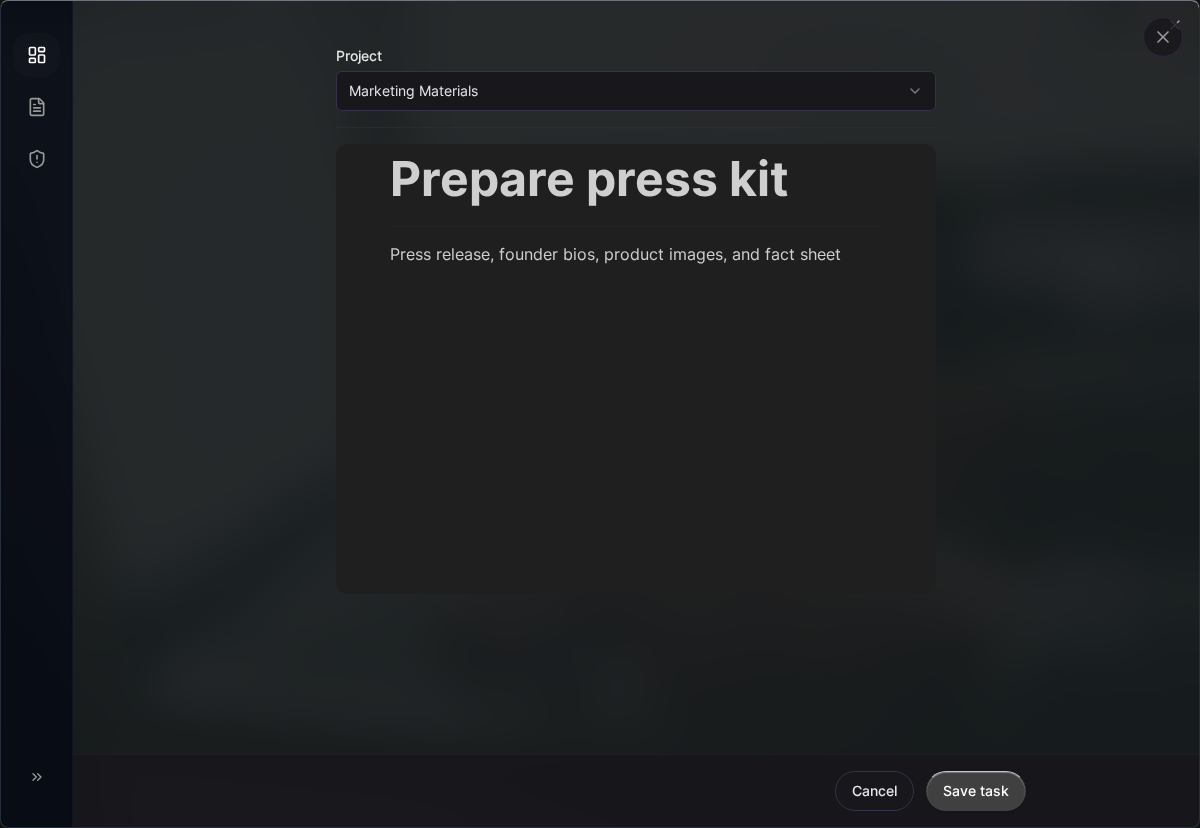
What is a Task?
A task is:
- A single work item
- Something you can mark as done
- Part of a project
- Optionally broken into subtasks
Task Properties
| Property | Description | Required |
|---|---|---|
label |
Task name | Yes |
status |
0 (open), 1 (in progress), 2 (done) | Auto (default: 0) |
description |
Rich text details (BlockNote JSON) | No |
project_id |
Parent project | Yes |
workflow_lane_id |
Kanban lane assignment | No |
position |
Order within project (LexoRank) | Auto |
Task Status
Every task has one of three statuses:
| Status | Value | Meaning | Icon |
|---|---|---|---|
| Open | 0 | Not started | ○ |
| In Progress | 1 | Being worked on | ◐ |
| Done | 2 | Completed | ● |
Changing Status
Click the status icon to cycle through statuses:
Open → In Progress → Done → Open

In Kanban view, drag tasks between columns to change status.
Creating Tasks
Quick Add
- Expand a project
- Click + Add task (or press
T) - Type the task name
- Press Enter
With Details
- Create the task
- Click on the task to open the detail view
- Add description, subtasks, lane assignment
- Click outside or press Escape to close
Bulk Add
Add multiple tasks quickly:
- Click + Add task
- Type a task and press Enter
- Continue typing and pressing Enter
- Click outside when done

Task Limits
| Plan | Tasks per Workspace |
|---|---|
| Personal | 500 |
| Pro | 2,500 |
| Teams | 10,000 |
Tasks count across all boards and projects.
Task Detail View
Click any task to open the detail panel:

Header
- Title: Click to edit inline
- Status: Click to change
- Close: Click X or press Escape
Description
Add rich text details:
- Formatted text (bold, italic, lists)
- Code snippets
- Links
- Checklists (separate from subtasks)
Subtasks
Break complex tasks into steps:
- Add unlimited subtasks
- Check off as you complete them
- Subtask progress shown on task card
Project Assignment
Move tasks between projects:
- Click the project dropdown
- Select a different project
- Task moves immediately
Workflow Lane
In Kanban mode, assign to a specific lane:
- Click the lane dropdown
- Select a lane (must match current status)
- Task appears in that lane
Task Operations
Editing
Inline editing: Click the task name in the list to edit
Full editing: Click the task to open detail view
Reordering
Drag tasks to reorder:
- Within a project
- Between projects (task moves to new project)
- Between status columns (in Kanban view)
Duplicating
- Open task detail view
- Click the menu (⋯)
- Select Duplicate
- Copy is created with “(copy)” suffix
Deleting
- Open task detail view
- Click Delete button
- Or swipe left on mobile
Deleted tasks go to trash for 40 days.
Task Animations
Kanman provides visual feedback for status changes:
- Completing: Task briefly highlights green
- Starting: Task briefly highlights blue
- Reopening: Task briefly highlights gray
These can be disabled in Settings > Preferences > Reduced Motion.
Keyboard Shortcuts
| Shortcut | Action |
|---|---|
T |
Add new task (when project focused) |
Enter |
Save task name |
Escape |
Cancel editing / Close detail |
Space |
Toggle status (when task focused) |
Delete |
Delete task (when focused) |
Best Practices
Actionable Names
Start with a verb:
- ✅ “Design homepage mockup”
- ✅ “Review pull request #123”
- ✅ “Email client about deadline”
- ❌ “Homepage”
- ❌ “Client email”
Right-Size Tasks
Tasks should be:
- Completable in one sitting (hours, not days)
- Specific enough to know when done
- Small enough that subtasks aren’t needed for most
Use Descriptions Wisely
Add descriptions for:
- Tasks requiring context
- Tasks with acceptance criteria
- Tasks you might forget details about
Subtasks for Complex Work
Use subtasks when:
- Task has multiple distinct steps
- You want to track partial progress
- Others need to see the breakdown
Workflow Integration
Status in Simple View
Tasks show status icons indicating their current state:
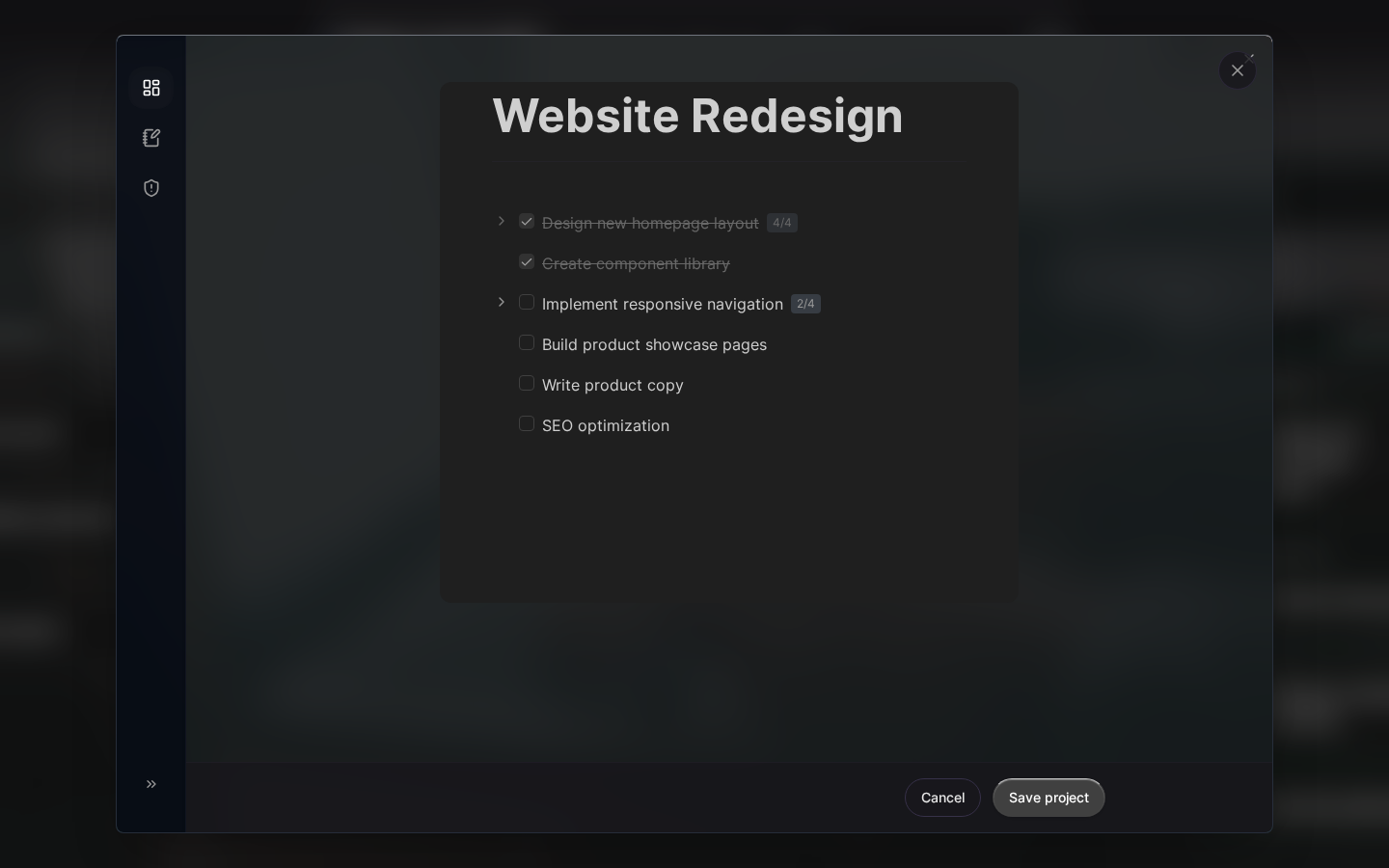
- ○ Open (not started)
- ◐ In Progress (being worked on)
- ● Done (completed)
Status in Kanban View
Tasks appear in columns based on their status:
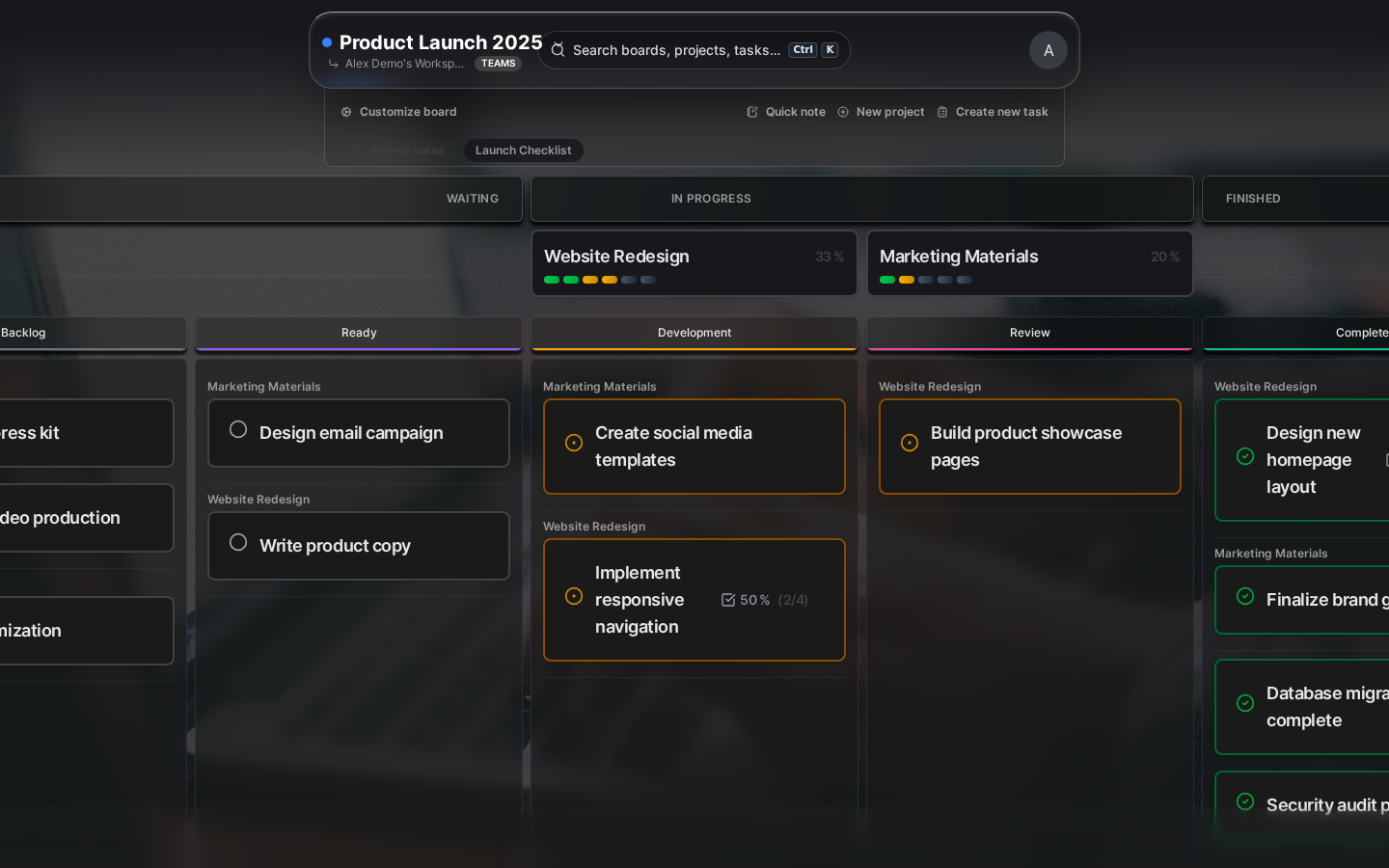
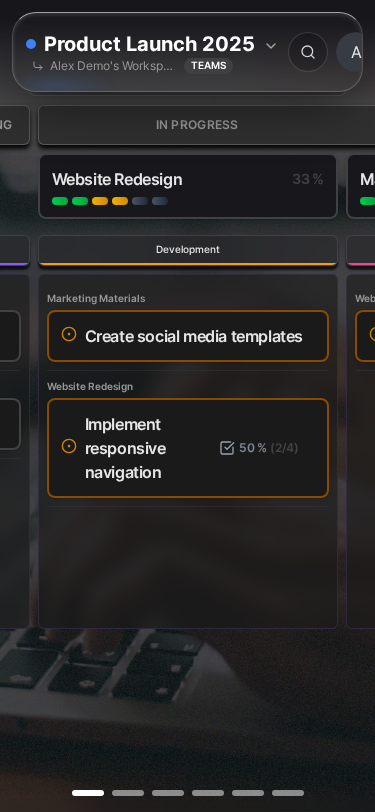
Drag between columns to change status.
Related Topics
- Subtasks - Break down complex tasks
- Kanban View - Visual task management
- Keyboard Shortcuts - Work faster
- API: Tasks - Manage tasks programmatically
Last updated: January 1, 0001
Try Kanman