Subtasks
Break down complex tasks into manageable steps with subtasks.
Subtasks help you break down complex tasks into smaller, trackable steps.
What is a Subtask?
A subtask is:
- A smaller step within a task
- A simple checkbox item (done/not done)
- A way to track partial progress
Subtask Properties
| Property | Description | Required |
|---|---|---|
label |
Subtask name | Yes |
is_completed |
Boolean (checked/unchecked) | Auto (default: false) |
task_id |
Parent task | Yes |
Creating Subtasks
- Click on a task to open the detail view
- Scroll to the Subtasks section
- Click + Add Subtask
- Type the subtask name
- Press Enter to add another, or click outside to finish
Completing Subtasks
Click the checkbox to toggle completion:
- ☐ → ☑ (mark complete)
- ☑ → ☐ (mark incomplete)
Subtask Progress
The parent task shows subtask progress:
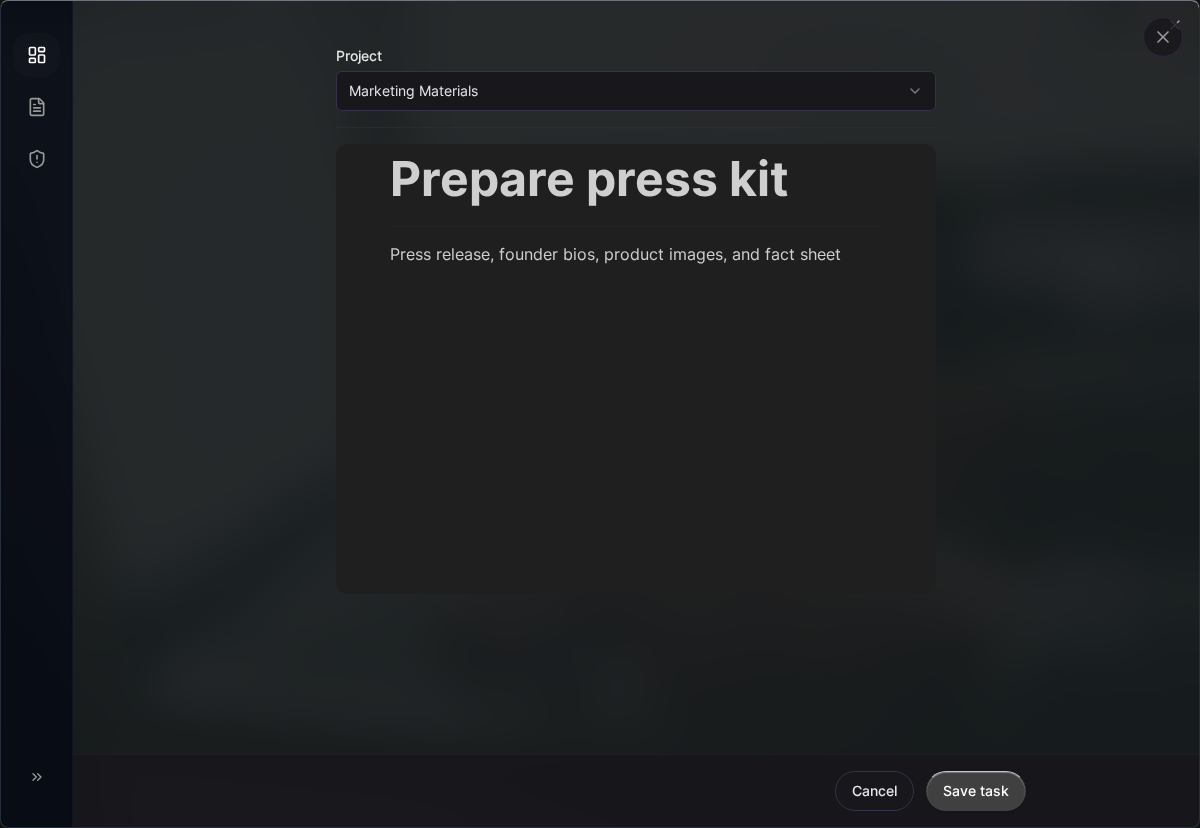
Subtasks show checkboxes:
- ☑ Completed subtask
- ☐ Pending subtask
The progress (e.g., “2/4”) is displayed on the task card as a small indicator.
Subtask vs Task
When to use subtasks:
| Use Subtask When | Use Separate Task When |
|---|---|
| Steps are sequential | Items are independent |
| Can’t be done by different people | Can be assigned separately |
| Part of one logical unit | Distinct deliverables |
| Just need checkboxes | Need status, description |
Example: Good Use of Subtasks
Task: Write blog post about new feature

Subtasks:
☐ Research topic
☐ Write outline
☐ Write first draft
☐ Add images
☐ Review and edit
☐ Publish
Example: Should Be Separate Tasks
Project: Launch marketing campaign

Tasks (not subtasks):
○ Design social media graphics
○ Write email copy
○ Create landing page
○ Set up analytics
Editing Subtasks
Rename
- Click on the subtask text
- Edit inline
- Click outside or press Enter to save
Reorder
Drag subtasks to reorder them:
- Click and hold the drag handle
- Drag to new position
- Release to drop
Delete
- Hover over the subtask
- Click the delete icon (🗑)
- Subtask is removed immediately
Note: Subtask deletion is immediate and doesn’t go to trash.
Subtasks and Task Deletion
When a task is deleted:
- All subtasks are deleted with it
- Subtasks go to trash with the parent task
- Restoring the task restores all subtasks
Subtask Limits
There’s no hard limit on subtasks per task, but for best performance:
- Keep under 50 subtasks per task
- If you need more, consider splitting the task
Best Practices
Keep Subtasks Small
Each subtask should be:
- Completable quickly (minutes to hours)
- Clearly defined
- Binary (done or not done)
Use Action Words
Start with verbs:
- ✅ “Write introduction”
- ✅ “Review design”
- ✅ “Send to client”
- ❌ “Introduction”
- ❌ “Design review”
Order Logically
Arrange subtasks in the order you’ll complete them:
- Research
- Draft
- Review
- Finalize
- Deliver
Don’t Over-Subtask
Not every task needs subtasks. Use them when:
- The task has multiple clear steps
- You want to track intermediate progress
- You might forget a step
Related Topics
- Tasks - Parent work items
- Progress Tracking - How completion is calculated
Last updated: January 1, 0001
Try Kanman