Projects
Learn about projects - containers for grouping related tasks within a board.
Projects group related tasks together within a board. They help you organize work by goal, milestone, or any logical grouping.
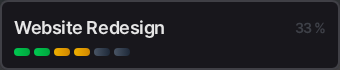
What is a Project?
A project is:
- A container for related tasks
- A way to track progress toward a goal
- An organizational unit within a board
Project Properties
| Property | Description | Required |
|---|---|---|
label |
Project name | Yes |
description |
Rich text description (BlockNote JSON) | No |
board_id |
Parent board | Yes |
position |
Order within board (LexoRank) | Auto |
Computed Properties
These are calculated automatically:
| Property | Description |
|---|---|
num_tasks_open |
Count of tasks with status 0 |
num_tasks_in_progress |
Count of tasks with status 1 |
num_tasks_done |
Count of tasks with status 2 |
num_tasks_total |
Sum of all tasks |
progress |
Percentage complete (0-1) |
Creating a Project
- Open a board
- Click + Add Project (or press
N) - Enter a project name
- Press Enter or click Create
With Description
- Create the project
- Click the project header to expand
- Click Add Description
- Use the rich text editor to add details
Project Limits
| Plan | Projects per Workspace |
|---|---|
| Personal | 25 |
| Pro | 100 |
| Teams | 500 |
Projects count across all boards in your workspace.
Progress Tracking
Automatic Progress
Progress is calculated automatically:
progress = num_tasks_done / num_tasks_total
The progress bar updates in real-time as you complete tasks.
Progress Display
| Progress | Visual |
|---|---|
| 0% | Empty bar |
| 1-99% | Partial fill |
| 100% | Full bar (green) |
Task Status Counts
Each project shows:
- Open: Tasks not yet started
- In Progress: Tasks being worked on
- Done: Completed tasks
Project Operations
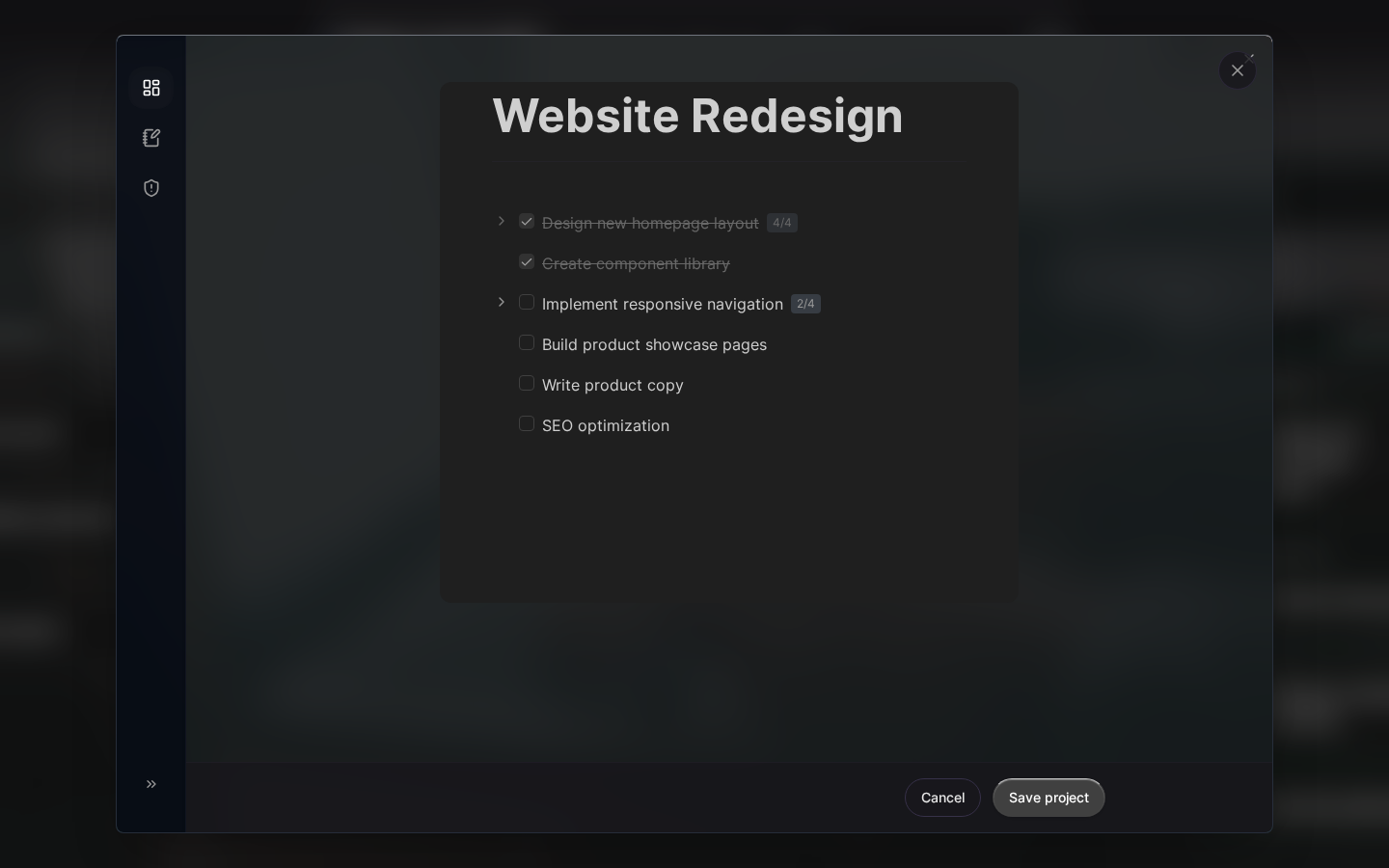
Expanding/Collapsing
Click the project header to toggle the task list:
- Expanded: See all tasks
- Collapsed: See just the header and progress
Reordering Projects
Drag projects to reorder them within a board:
- Click and hold the drag handle (⋮⋮)
- Drag to the new position
- Release to drop

Order persists using LexoRank for stable positioning.
Editing a Project
- Click the project menu (⋯)
- Select Edit
- Update name or description
- Changes save automatically
Moving to Another Board
- Click the project menu (⋯)
- Select Move to Board
- Choose the destination board
- Confirm the move
Note: All tasks move with the project.
Deleting a Project
- Click the project menu (⋯)
- Select Delete
- Confirm deletion
The project and all its tasks go to trash for 40 days.
Auto-Archive Feature
Automatically archive completed projects:
- Go to Settings > Preferences
- Enable Auto-archive finished projects
- Set the delay (7-365 days, default 30)
When a project reaches 100% completion and hasn’t been updated within the delay period, it’s automatically moved to trash.
Rich Text Descriptions
Project descriptions support:
- Headings: H1, H2, H3
- Text formatting: Bold, italic, underline, strikethrough
- Lists: Bullet points, numbered lists, checklists
- Code: Inline code and code blocks
- Links: External URLs
- Quotes: Block quotes
The editor uses BlockNote for a modern editing experience.
Project in Kanban View
In Kanban layout, you can filter by project:
- Switch to Kanban view
- Use the project filter dropdown
- Select one or more projects
- View only those tasks in the kanban board
This helps focus on specific work streams within the broader board.
Linking to Git Repositories
On Pro and Teams plans, link projects to Git repositories:
- Connect your GitHub account in Settings
- Open project settings
- Click Link Repository
- Select a repository
- Configure sync options
See Git Integration for details.
Best Practices
Clear Naming
Use descriptive, action-oriented names:
- ✅ “Launch Marketing Campaign”
- ✅ “Implement User Authentication”
- ✅ “Q1 2024 Goals”
- ❌ “Stuff to do”
- ❌ “Project 1”
Right-Size Projects
Projects should be:
- Small enough to complete in a reasonable timeframe
- Large enough to warrant grouping tasks
- Typically 5-50 tasks
Use Descriptions
Add context that helps you and your team:
- Project goals and success criteria
- Key stakeholders
- Important links and references
- Timeline and milestones
Regular Review
- Weekly: Review active projects
- Monthly: Archive completed projects
- Quarterly: Clean up stale projects
Related Topics
- Tasks - Work items within projects
- Kanban View - Visual project management
- Auto-Archive - Automatic cleanup
- Git Integration - Link to repositories
Last updated: January 1, 0001
Try Kanman