Boards
Learn everything about boards - your top-level organizational units in Kanman.
Boards are the primary way to organize your work in Kanman. They serve as the top-level containers that group related projects and tasks together, giving you a dedicated space for each distinct area of your work or life.
Whether you’re managing a product launch, organizing client work, or tracking personal goals, each board provides a focused environment where everything related to that context lives together. You can customize each board’s appearance with backgrounds, icons, and accent colors to make it instantly recognizable and visually distinct from your other boards.
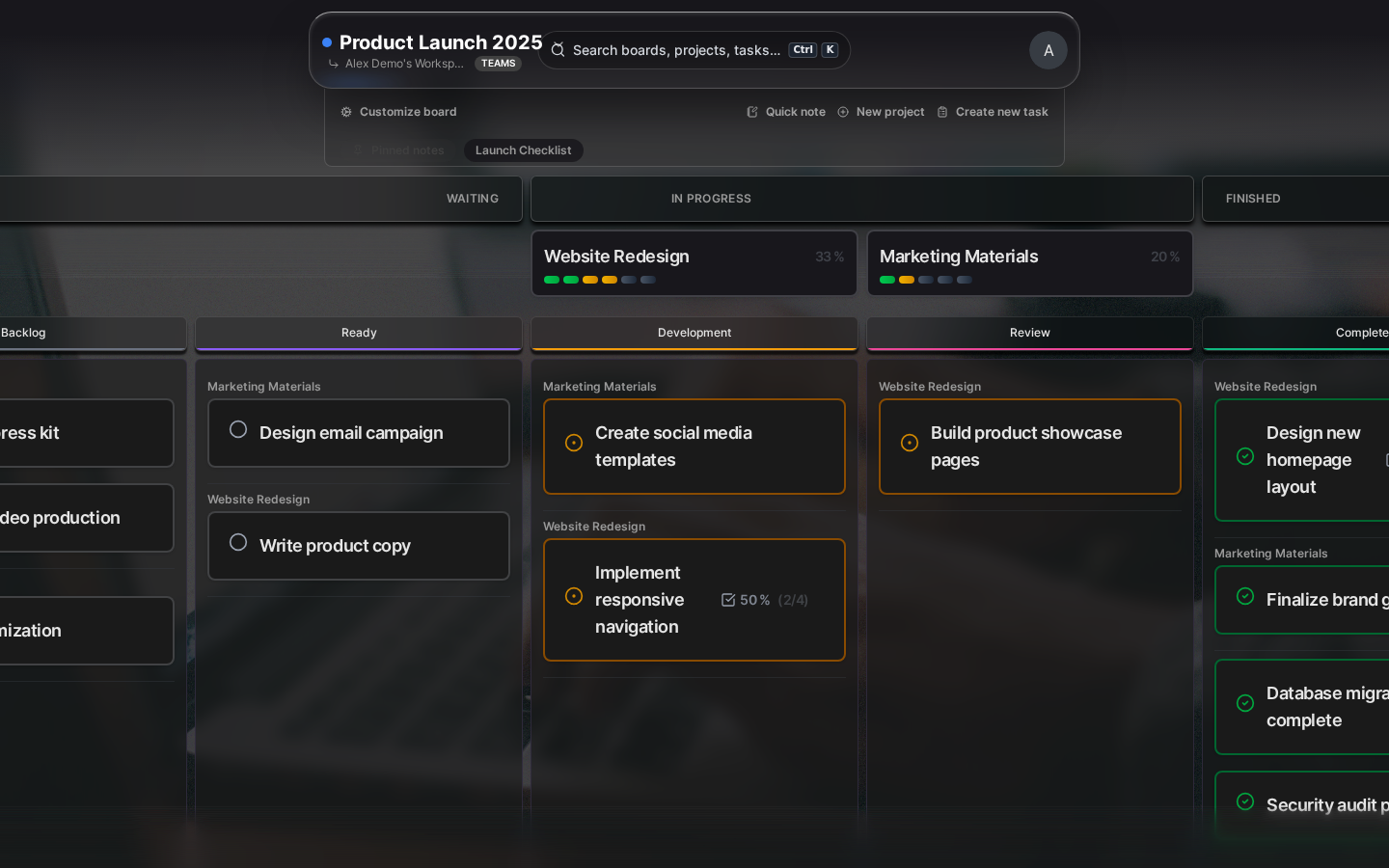
What is a Board?
A board is much more than a simple folder—it’s a complete workspace designed to help you focus on one area at a time. Think of it as:
- A dedicated workspace for organizing all work related to a specific context, like “Product Development” or “Personal Finance”
- A visual environment with customizable backgrounds, icons, and accent colors that make each board uniquely yours
- A filtering boundary that lets you focus on one area without distraction from unrelated work
- A layout choice that can be set to Simple (list-based) or Kanban (column-based) view depending on how you prefer to work
Board Properties
| Property | Description | Required |
|---|---|---|
label |
Board name (max 255 chars) | Yes |
description |
Rich text description | No |
icon_name |
Lucide icon identifier | No |
background_color |
Hex color code | No |
background_image_url |
Unsplash image URL | No |
accent_color |
Hex color for UI elements | No |
layout_preference |
simple or kanban |
No (default: simple) |
Creating a Board
From the Sidebar
- Click + New Board at the bottom of the sidebar
- Enter a board name
- Click Create
With Customization
- Click + New Board
- Fill in the board name
- Click Customize to expand options:
- Choose an icon
- Set a background color or image
- Pick an accent color
- Click Create
Board Limits
The number of boards you can create depends on your plan:
| Plan | Active Boards |
|---|---|
| Personal | 5 |
| Pro | 15 |
| Teams | 50 |
Note: Deleted boards in trash don’t count toward your limit.
Customization Options
Icons
Choose from hundreds of Lucide icons to give your board instant visual recognition:
- Search by keyword (e.g., “briefcase”, “home”, “code”)
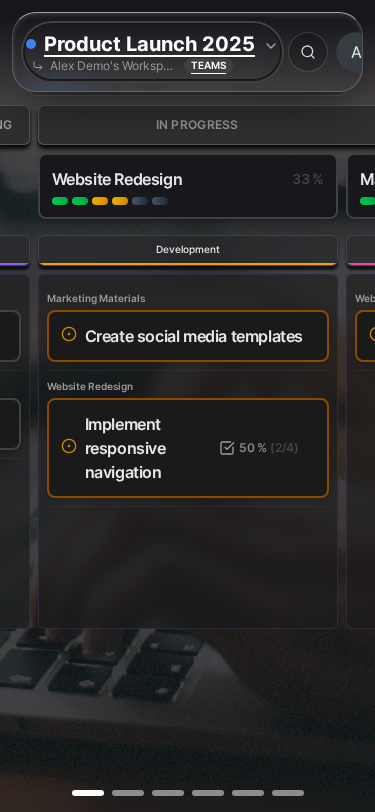
- Icons appear in the sidebar and board header
- Leave empty for no icon
Background Colors
Set a solid background color:
- Use the color picker
- Enter a hex code directly
- Background applies to the board view
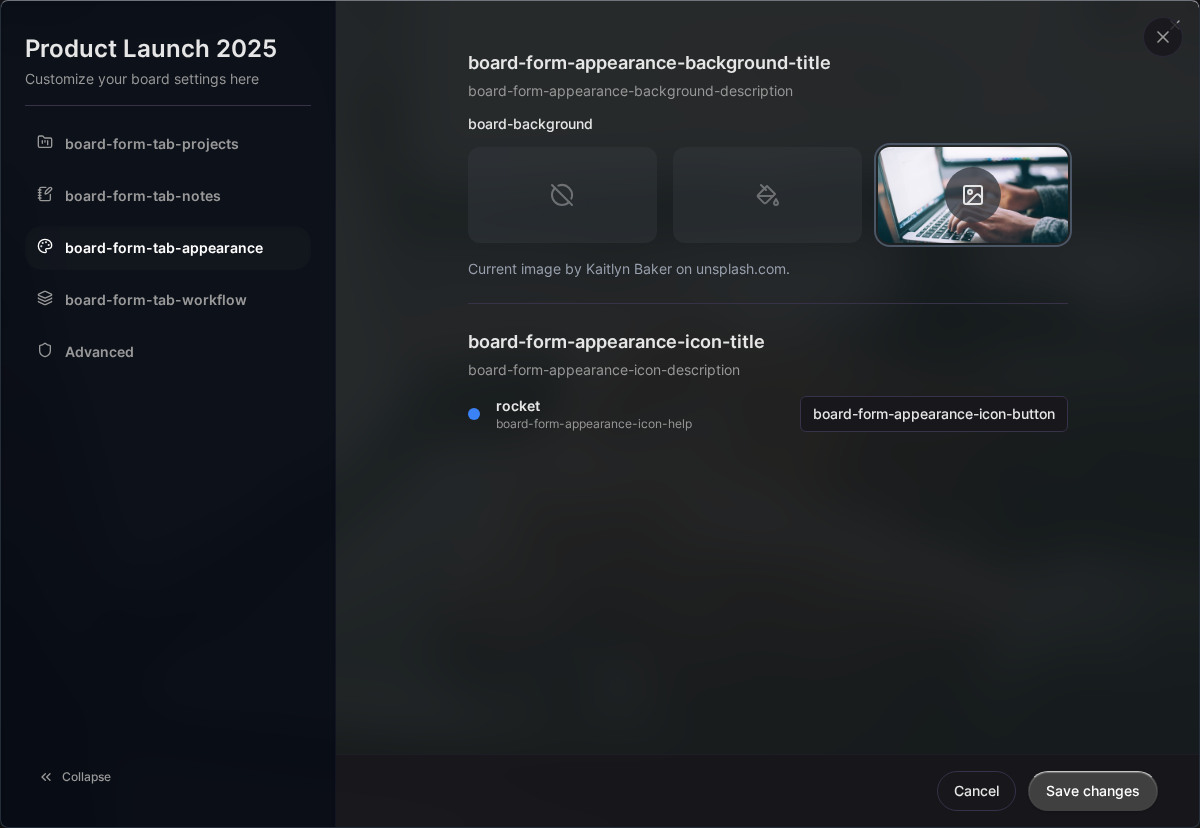
Background Images
Use Unsplash for beautiful, free photos:
- Click Choose Image
- Search for a theme (e.g., “mountains”, “workspace”)
- Select an image
- Photographer credit is automatically saved
Accent Colors
The accent color appears in:
- Project headers
- Progress bars
- Buttons and interactive elements
- Hover states
Choose a color that complements your background.
Layout Options
Simple Layout
The default list-based view:
- Projects appear as expandable cards
- Tasks listed vertically within projects
- Great for quick task management
- Works well on all screen sizes
Kanban Layout
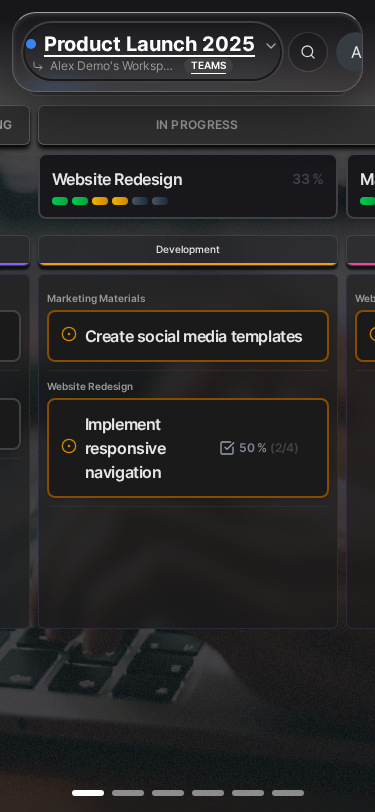
A visual board with columns:
- Tasks organized by status (Waiting, In Progress, Finished)
- Drag and drop between columns
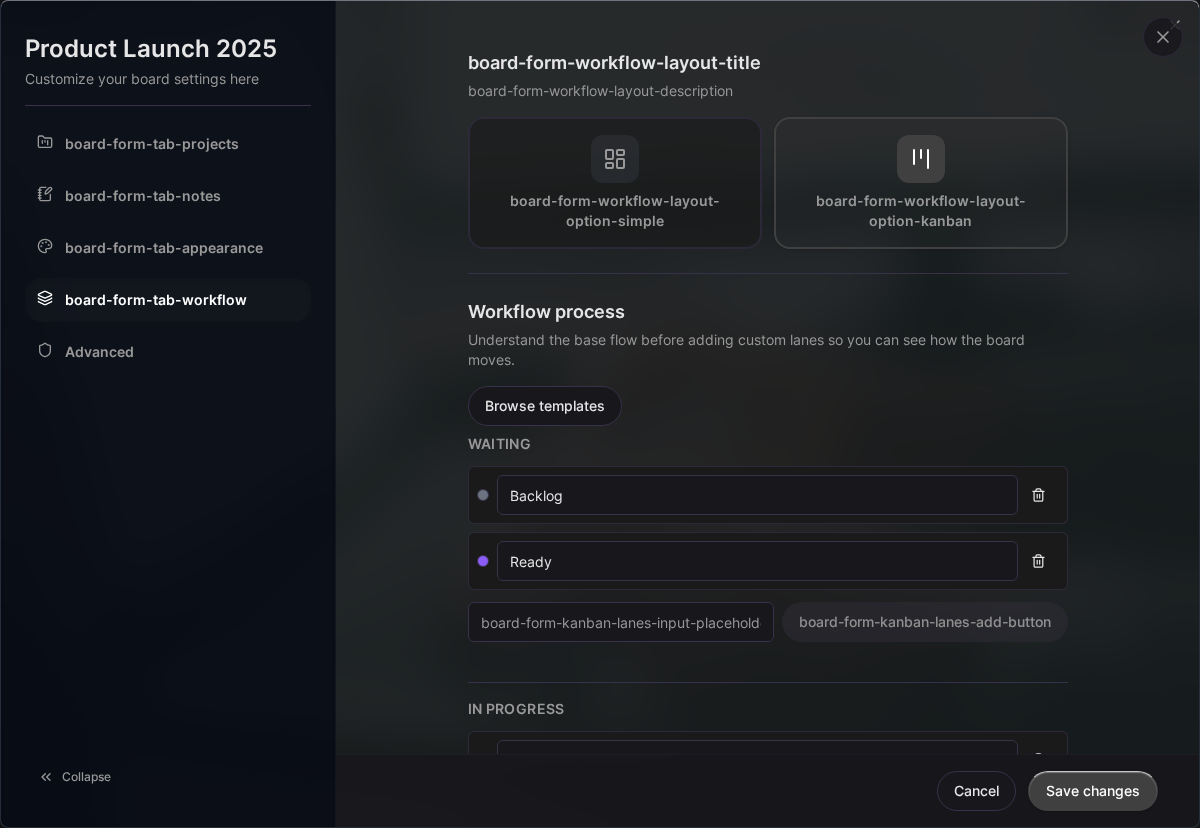
- Custom workflow lanes
- Ideal for visual thinkers and sprint planning
Switch layouts anytime via the layout toggle in the board header.

Board Operations
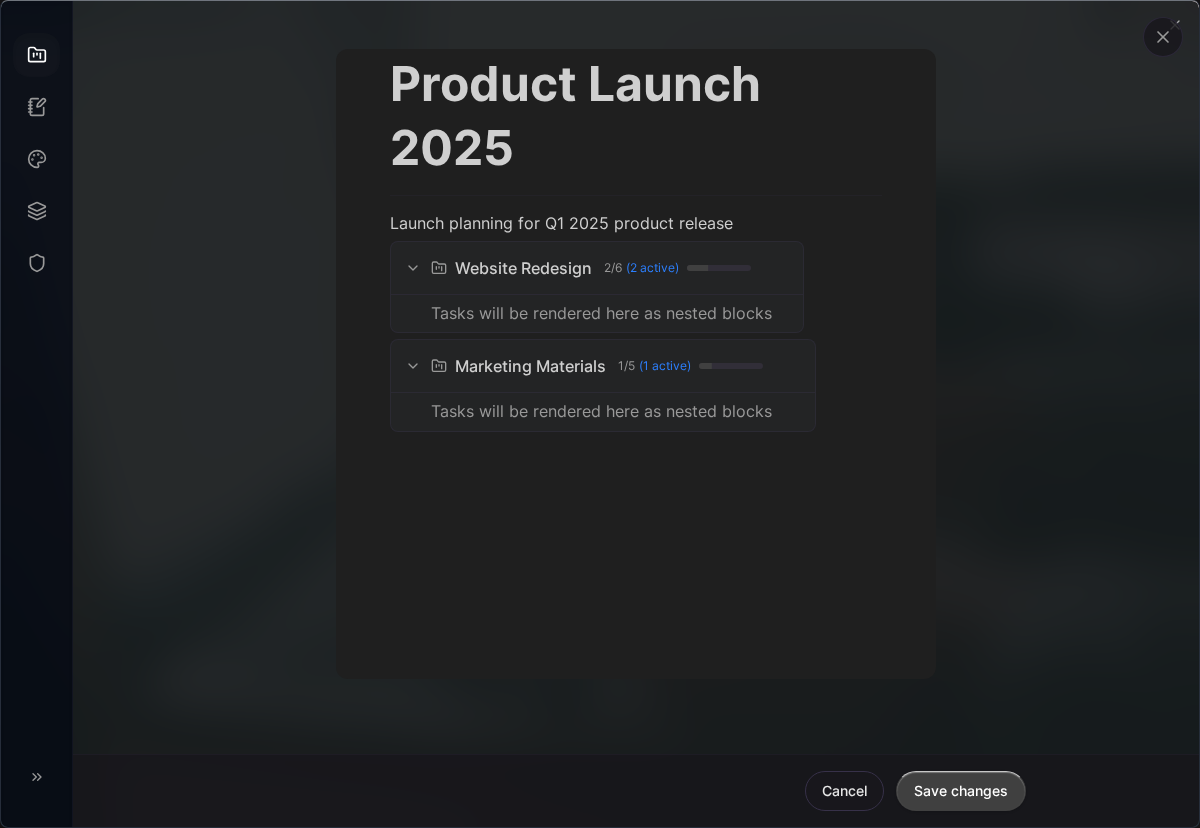
Editing a Board
- Open the board
- Click the settings icon (⚙️) in the header
- Make changes in the modal
- Changes save automatically when you close
Duplicating a Board
Currently, board duplication is not supported. As a workaround:
- Create a new board with similar settings
- Manually recreate projects (tasks won’t copy)
Archiving vs Deleting
Kanman uses soft deletion:
- Delete: Moves to trash, recoverable for 40 days
- Permanent Delete: After 40 days in trash, or manually emptied
There’s no separate “archive” feature - use trash for temporary removal.
Deleting a Board
- Open board settings
- Scroll to Danger Zone
- Click Delete Board
- Confirm deletion
Warning: Deleting a board also deletes all projects, tasks, and subtasks within it. They all go to trash together.
Board with Notes
Each board can have associated notes for documentation:
- Meeting notes
- Reference information
- Project guidelines
- Team agreements
Access notes via the Notes button in the board header.
Board with Workflow Lanes
In Kanban layout, you can create custom workflow lanes:
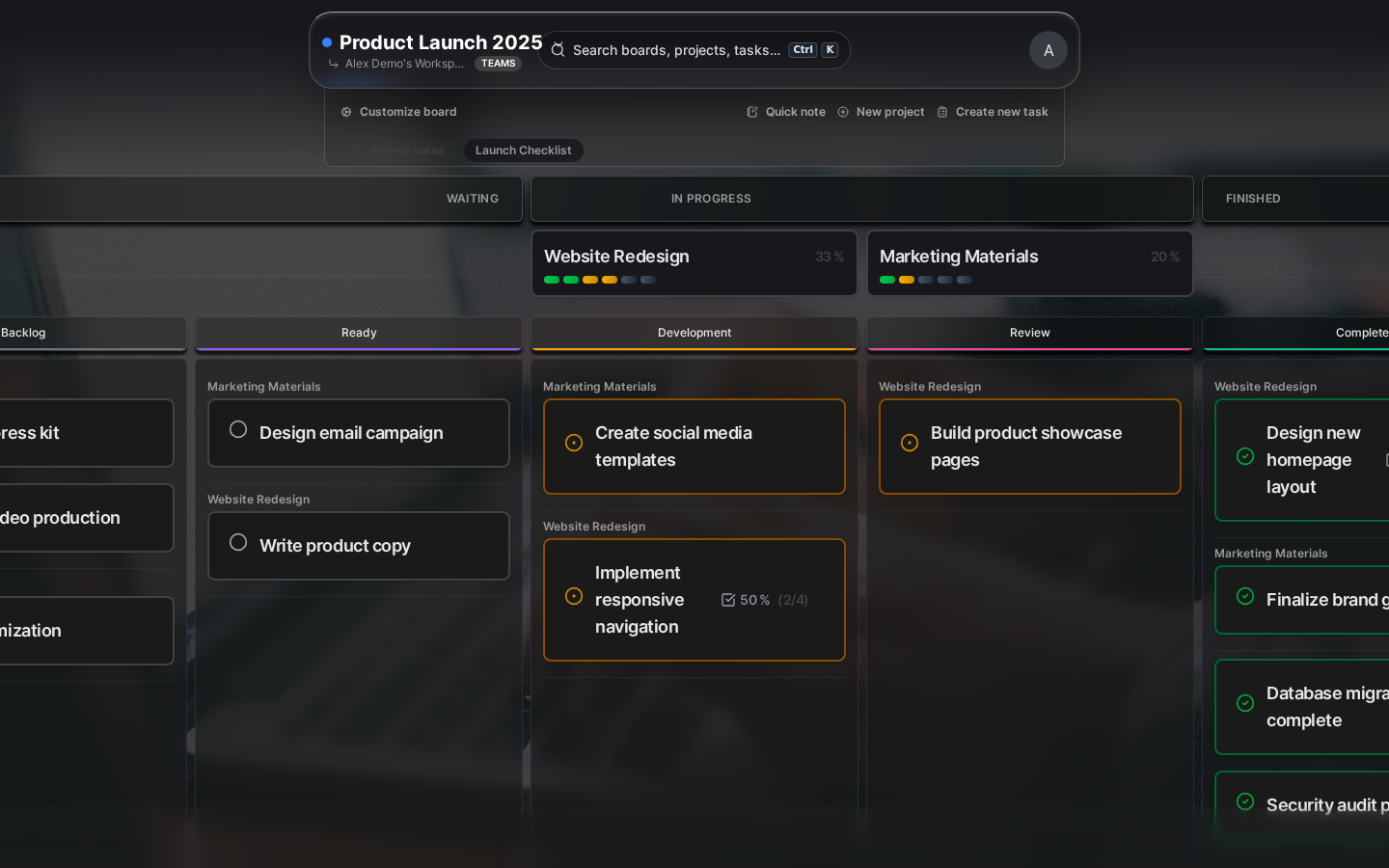
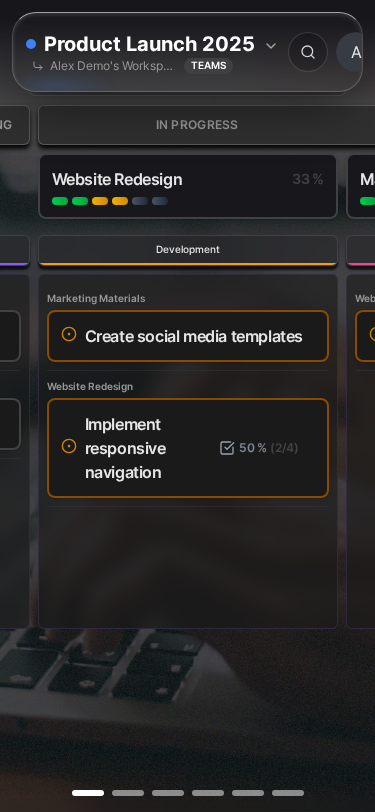
Lanes help visualize your specific workflow within each status stage. Common lane setups include:
- Waiting: Backlog, To Review
- In Progress: Development, Review, Testing
- Finished: Done, Deployed
Best Practices
One Purpose Per Board
Keep boards focused:
- ✅ “Marketing Campaigns”
- ✅ “Product Development”
- ❌ “Everything Work Related”
Consistent Naming
Establish naming conventions:
- “Client: [Name]” for client work
- “[Year] [Initiative]” for time-bound projects
- “[Area] - [Focus]” for departmental work
Regular Cleanup
- Archive completed projects
- Delete obsolete boards
- Review quarterly to stay organized
Related Topics
- Creating Your First Board - Step-by-step guide
- Kanban View - Visual workflow management
- Notes - Board documentation
- Trash & Recovery - Recovering deleted boards
Last updated: January 1, 0001
Try Kanman