Profile
Manage your Kanman profile, display name, and avatar.
Your profile represents your identity in Kanman, especially visible when collaborating with others on Teams plans.
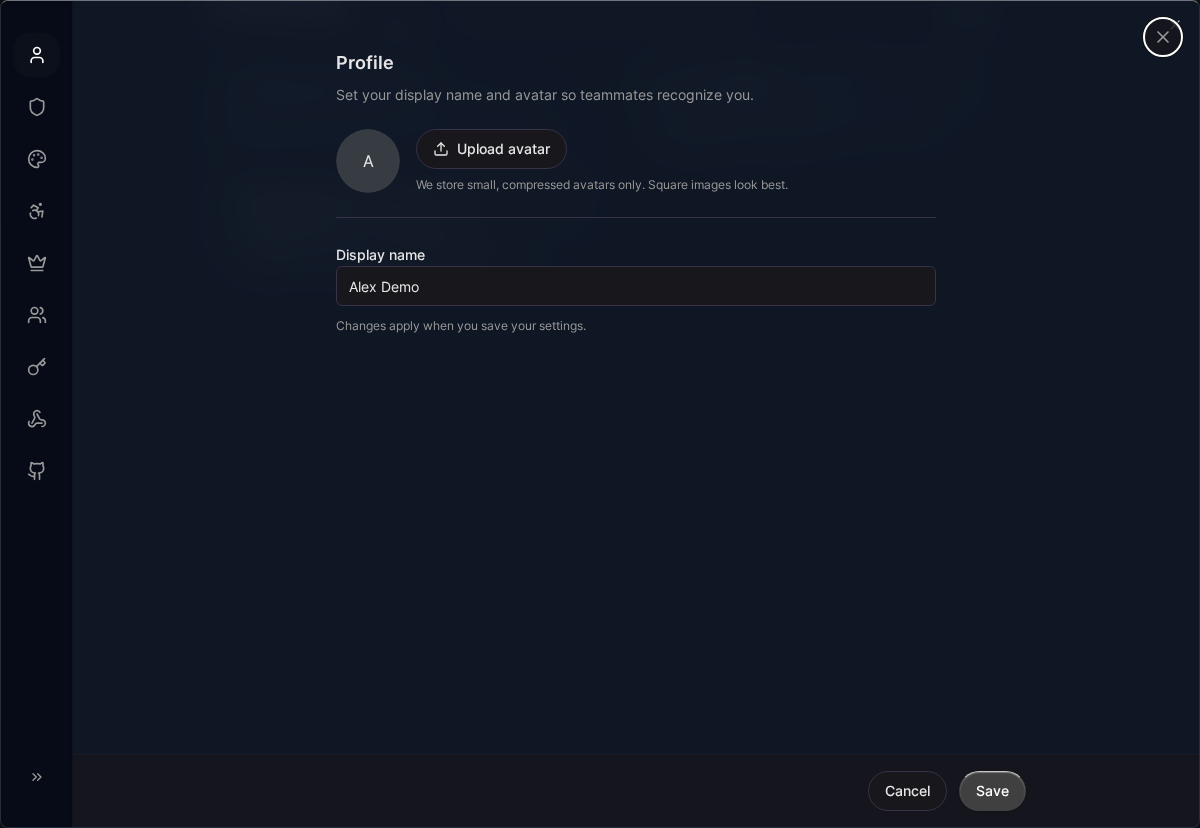
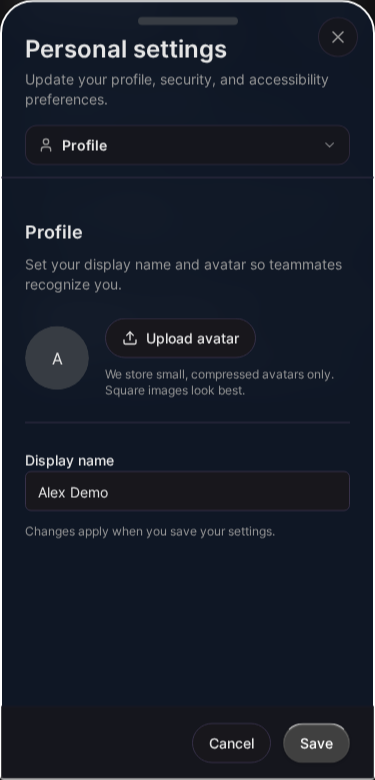
Accessing Profile Settings
- Click your profile icon in the header
- Select Settings
- Go to Profile
Profile Information
Display Name
Your display name appears:
- In your profile menu
- On tasks you create (Teams)
- In workspace member lists (Teams)
- On invoices and receipts
To change:
- Go to Settings > Profile
- Edit Display Name
- Changes save automatically
Your email is used for:
- Sign-in
- Password reset
- Notifications
- Billing receipts
To change email:
- Go to Settings > Profile
- Click Change Email
- Enter new email
- Verify the new address
Avatar
Your avatar appears:
- In the header (small)
- In your profile menu
- In team lists (Teams)
Changing Avatar
- Go to Settings > Profile
- Click your current avatar
- Upload a new image
- Crop if needed
- Click Save
Avatar Requirements
- Formats: JPG, PNG, GIF
- Maximum size: 2MB
- Recommended: 200x200 pixels minimum
- Cropped to square
Removing Avatar
- Go to Settings > Profile
- Click your avatar
- Click Remove
- Default initials will be used
Account Information
Account ID
Your unique account identifier. Useful for:
- Support requests
- API debugging
- Data exports
Found at the bottom of Settings > Profile.
Created Date
When your Kanman account was created.
Plan
Your current subscription plan:
- Personal
- Pro
- Teams
Data Export
Request a copy of all your data:
- Go to Settings > Profile
- Scroll to Data
- Click Export My Data
- You’ll receive an email with download link
Export includes:
- All boards, projects, tasks
- Notes and content
- Settings and preferences
- Account information
Account Deletion
To permanently delete your account:
- Go to Settings > Profile
- Scroll to Danger Zone
- Click Delete Account
- Enter your password to confirm
- Confirm deletion
What Gets Deleted
- All your data (boards, projects, tasks, notes)
- Your profile and preferences
- API tokens and integrations
- Subscription (canceled, no refund)
What Doesn’t Get Deleted
- Invoices (required for legal/tax purposes)
- Anonymous analytics data
Waiting Period
Account deletion has a 7-day waiting period:
- Cancel deletion within 7 days
- After 7 days, deletion is irreversible
- You can’t create a new account with the same email for 30 days
Related Topics
- Preferences - Customize your experience
- Security - Password and security
- Workspaces - Team profiles
Last updated: January 1, 0001
Try Kanman